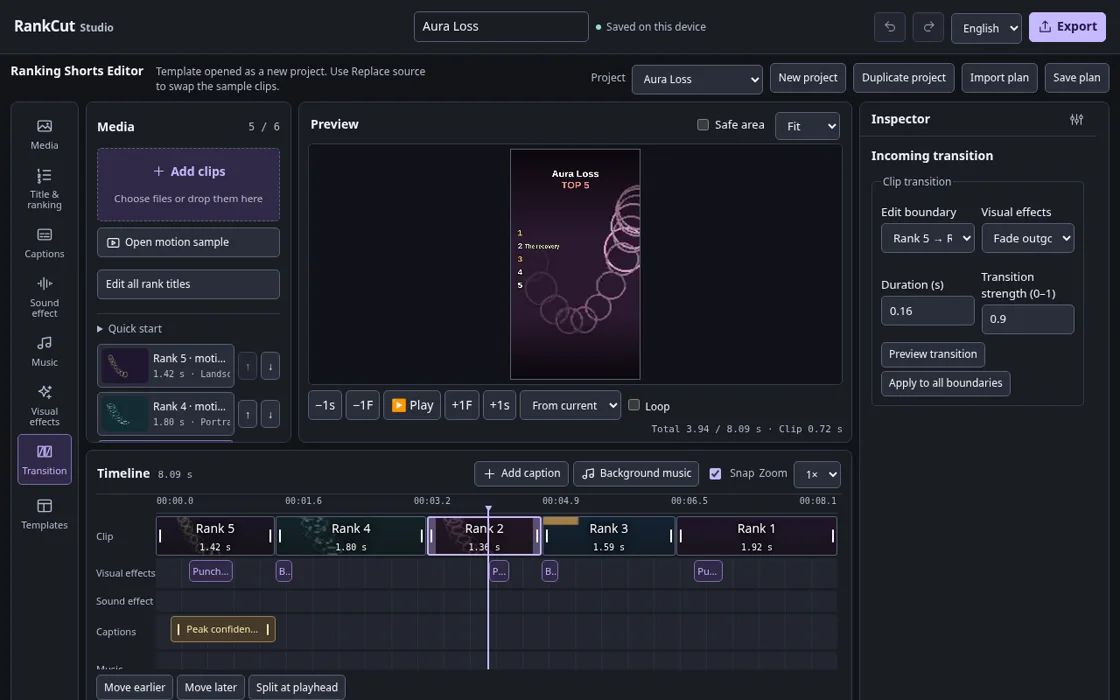
How to Create Ranking Video Transitions
Compare cuts, blackouts and whip pans and match each sound to the rank boundary.
Choose two clips with different movement
Start with two clips you can publish. Use a straight cut for matching action or compare a brief blackout when a reveal needs a beat.
Choose the boundary in the transition panel
Open Aura Loss and select a boundary in Transition. A fade of the outgoing clip makes sense when the new clip should start bright.
Preview a short duration
Start around 0.2 seconds and preview both sides of the cut. Shorten the rank reveal delay if the title appears after the viewer needs it.
Set the audio cue separately
Try Sudden reversal for a scratch and blackout. Confirm the incoming clip carries the transition anchor, and adjust the cue level against the original footage.
Review the saved cut
Play the saved file around each boundary. Reduce flash intensity or frequency if it distracts from the ranking board. Export formats vary by browser.